
Best Telos Wallets: Top Picks for Developers
ℹ Introduction To Telos Wallets
Telos supports a variety of wallets to cater to different user preferences. For most users, app-based or browser wallets offer a familiar experience without requiring command-line tools.
- Desktop walletsallow users to store their wallets directly on their computers, providing full control over private keys.
- Mobile walletsoffer a convenient way to manageTLOSon the go, with user-friendly interfaces and added features for DeFi and GameFi interactions.
- Command-line walletsenable direct interaction with the Telos blockchain through terminal commands for advanced use cases.
Creating a Telos account typically requires a small deposit in another cryptocurrency, and once set up, the account name serves as the receiving address for transactions.
How To Add The Telos Network To Your Metamask Wallet
To add theTelos Networkto yourMetaMaskwallet, follow these steps:
Step 1 – Install MetaMask
Download and installMetaMaskon your preferred browser, iOS, or Android device. During setup, carefully follow all installation tips and securely store yourprivate key/seed phrase—losing it means losing access to your wallet.
Step 2 – Import the Telos EVM RPC
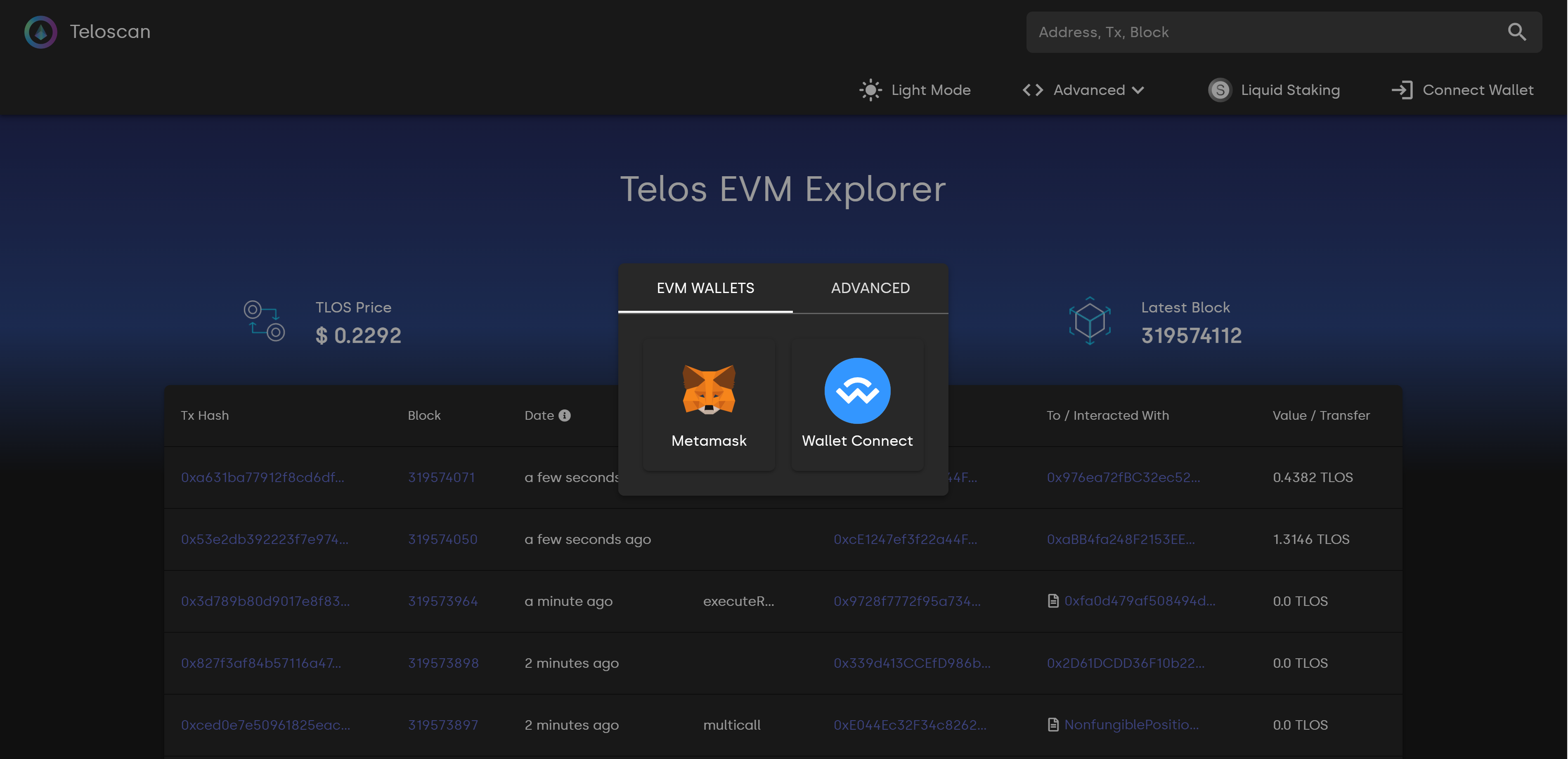
- VisitTeloscan.
- Click"Connect Wallet"in the top-right corner.
- SelectMetaMaskand approve the connection.
- Click"Approve"to add theTelos EVMnetwork.
- Click"Switch Network"if you want to start using Telos EVM immediately.
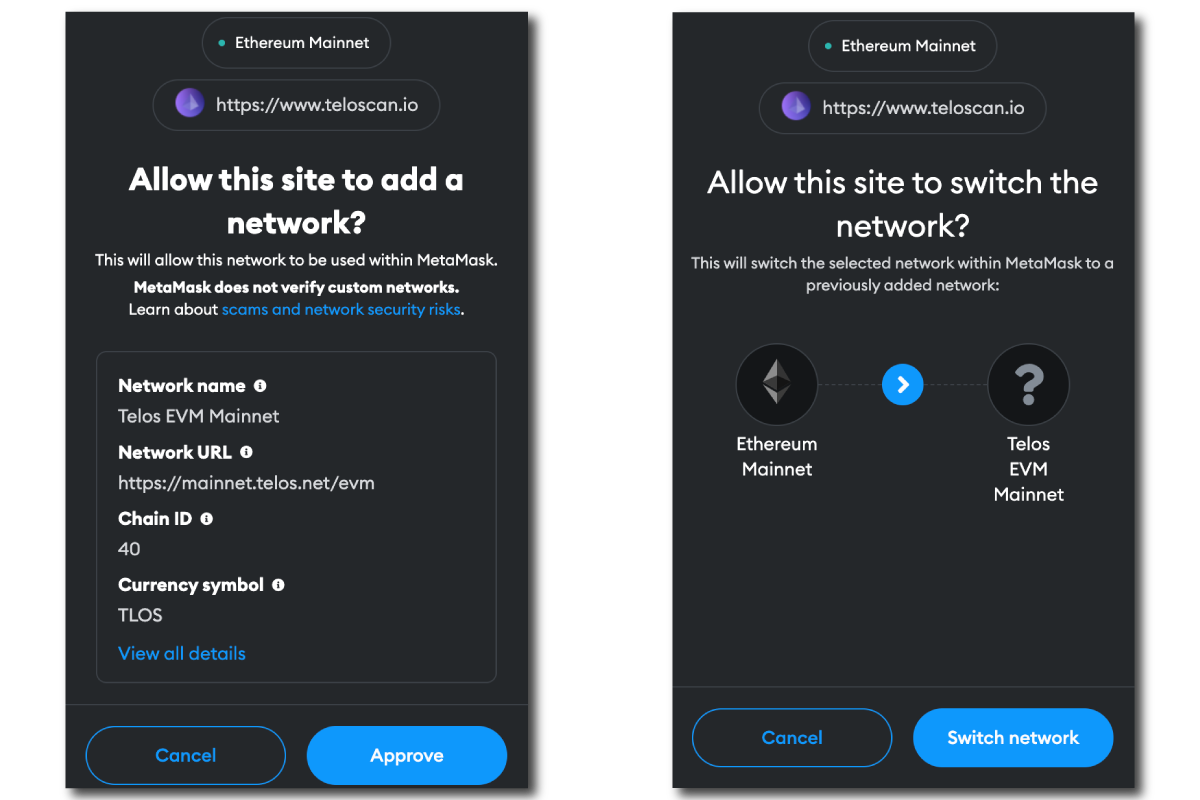
Once added, you can enjoyTelos EVM’sfast transactions, low fees, and MEV-resistant trading environment.
How To Set Up a Telos Zero Native Wallet
To useAnchoras a signer with theTelos Web Wallet, follow these steps:
Step 1 – Create a New Telos Account
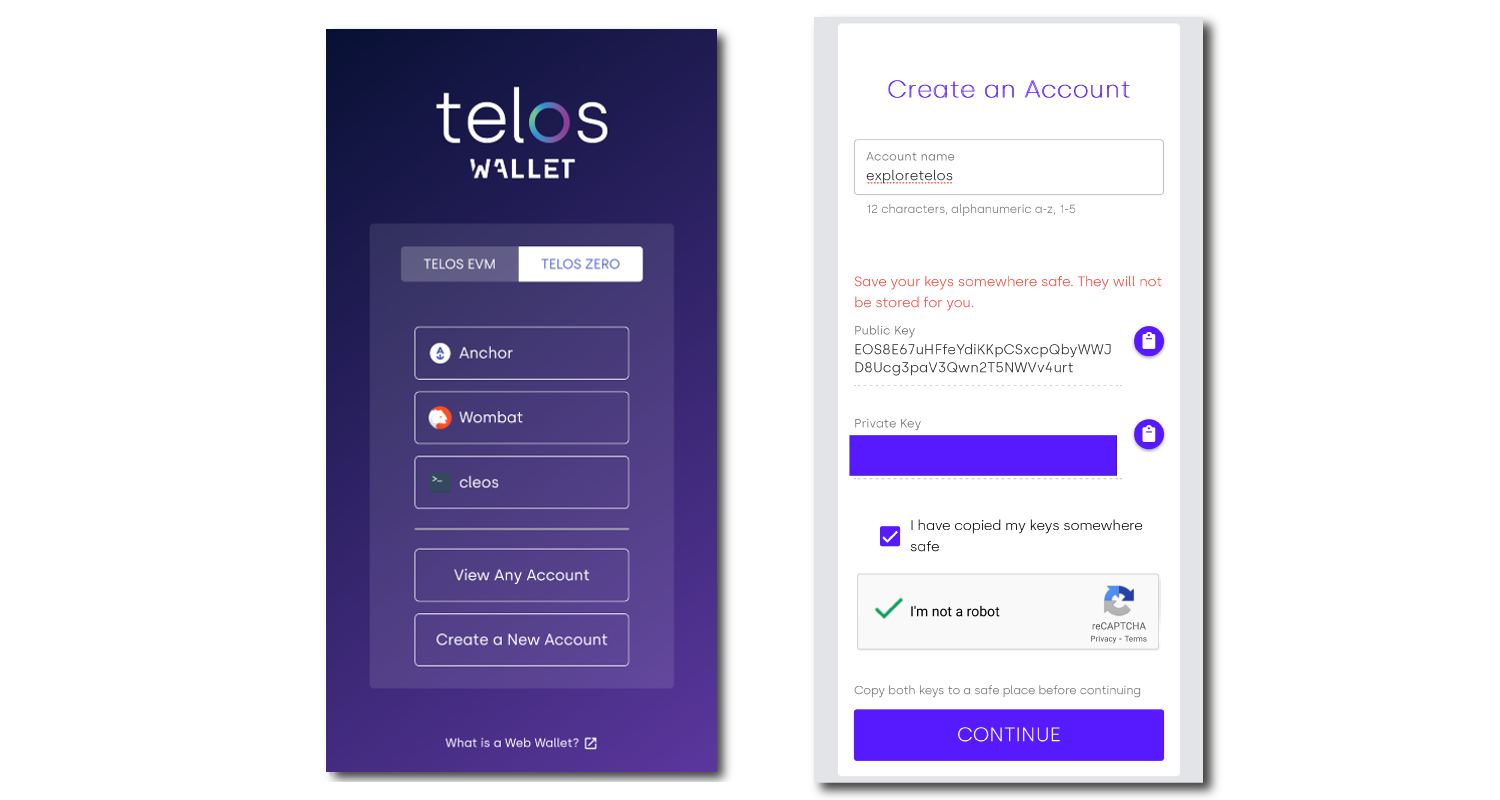
- Go to theTelos Wallet.
- Click the"TELOS ZERO"tab and select"Create a New Account".
- Choose a12-character account name(letters a-z, numbers 1-5).
- Save and securely store yourpublic and private key.
- Click"Continue"to finalize your account creation.
Step 2 – Use Anchor to Sign Transactions
- DownloadAnchor.
- Open Anchor and select"Add Account".
- Click"Import Private Key"and paste the private key from your Telos account.
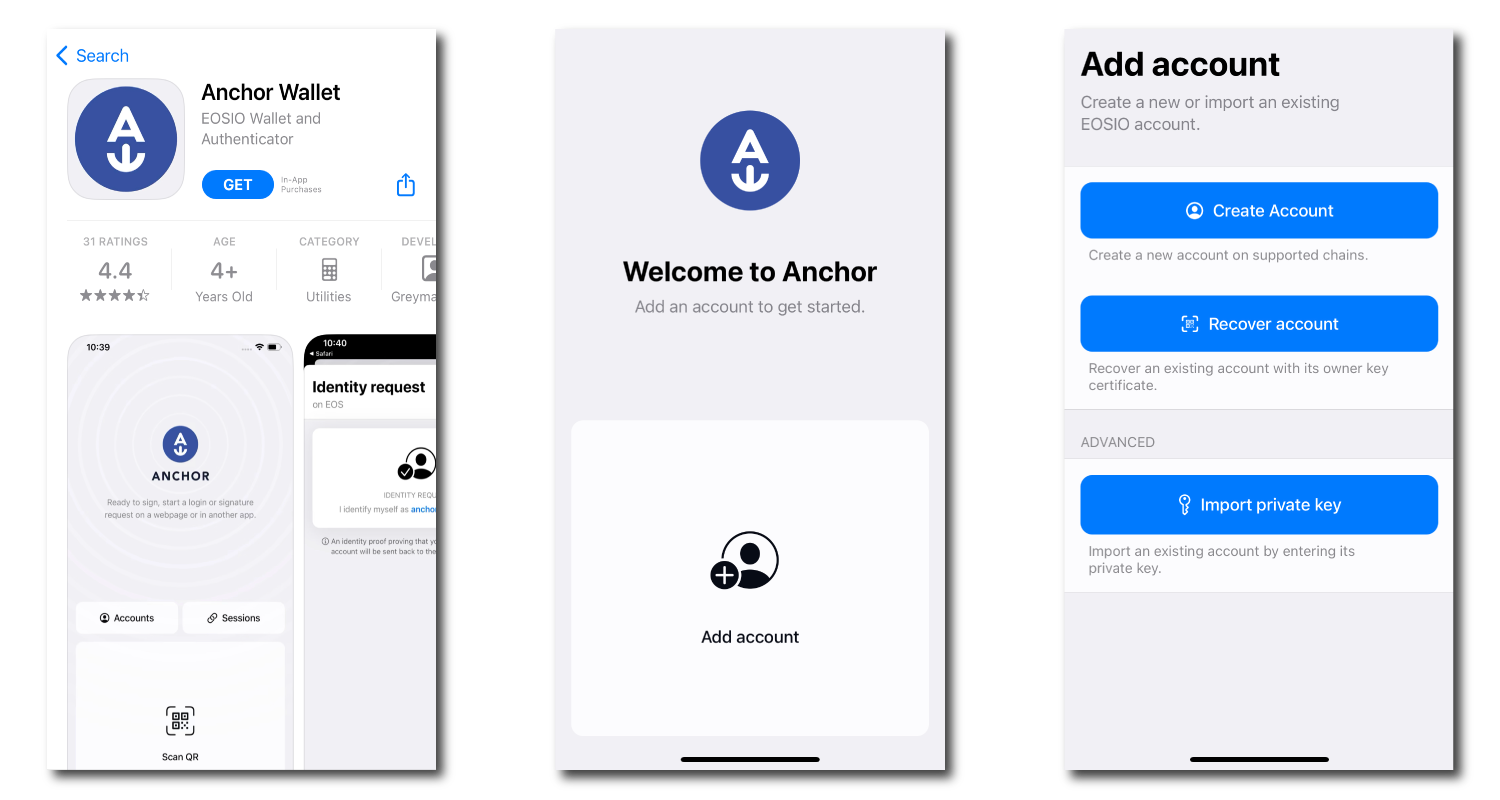
- Select your account and confirm the import.
- Complete the security setup and click"Import Account".
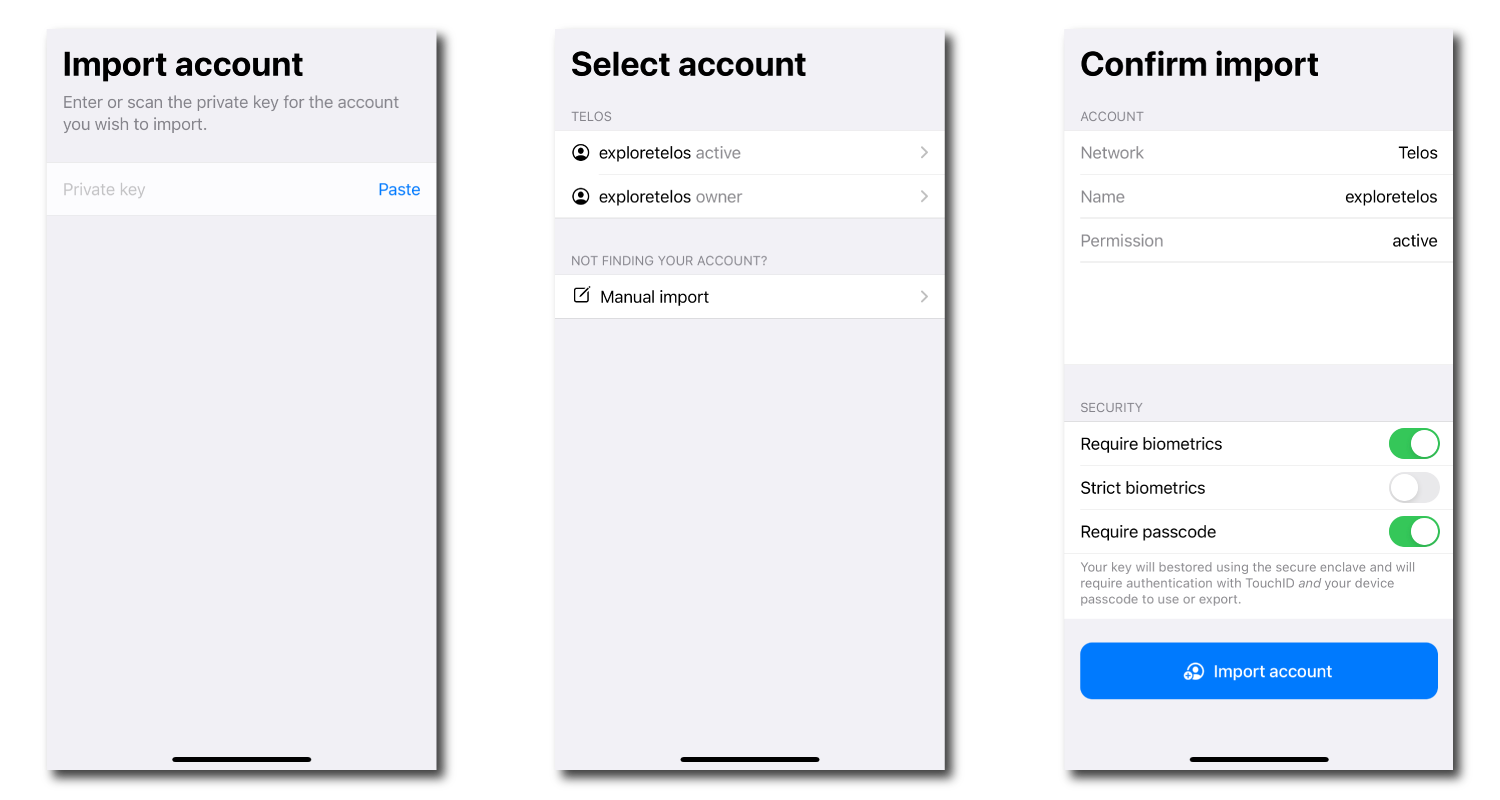
Note:Anchor is not a wallet—it acts as asigner, authorizing transactions on theTelos ecosystem.
Step 3 – Log into the Telos Web Wallet
- Return to theTelos Wallet.
- Click the"TELOS ZERO"tab and select"Anchor"as your login method.
- UseAnchorto authenticate and access your Telos account.
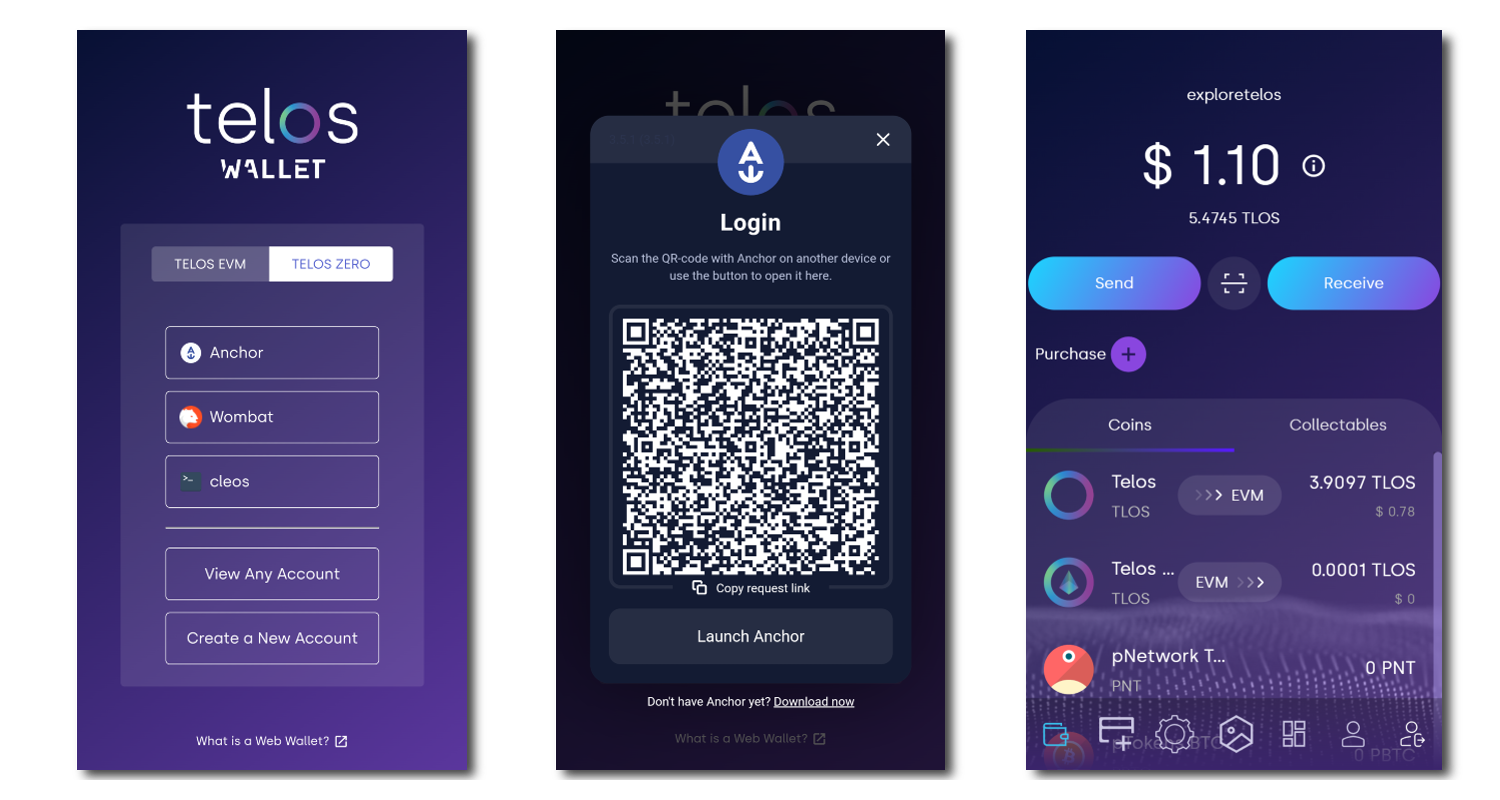
Once logged in, you cansend, receive, stake, and manage assetson theTelos Web Wallet!